Knowledge base > General > Friday, 11 November 2016
Control panel explained
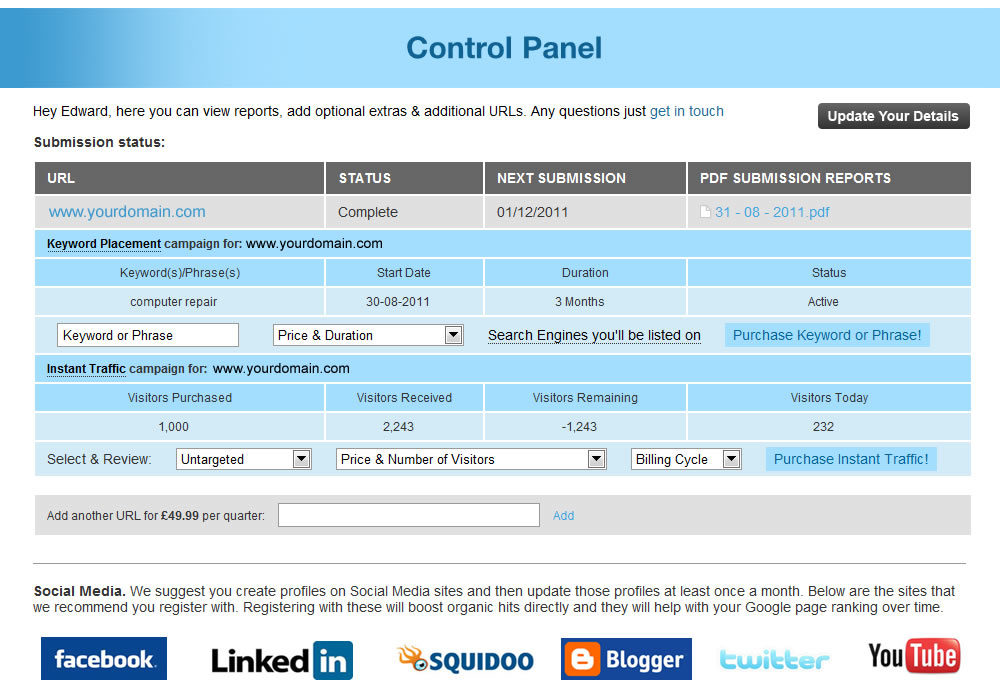
Screen shot
Built in house. Our control panel is industry leading
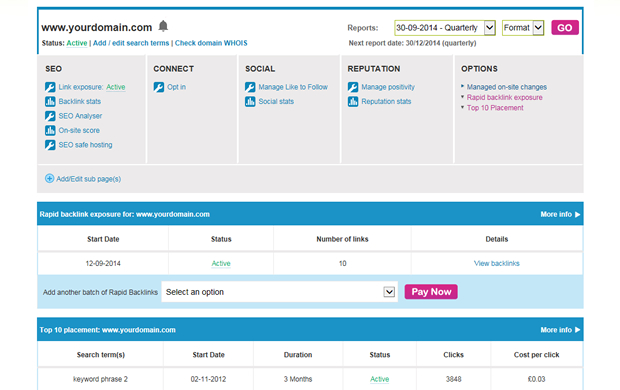
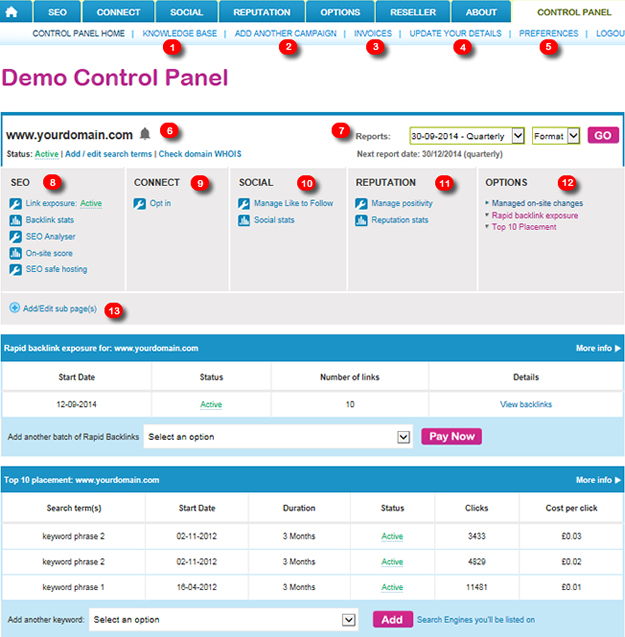
See the screen shot and key below.
Key
1. Knowledge base. If you’re ever stuck for an answer to a question or just feel like you want to learn more about any element of our products then just check out the knowledge base.
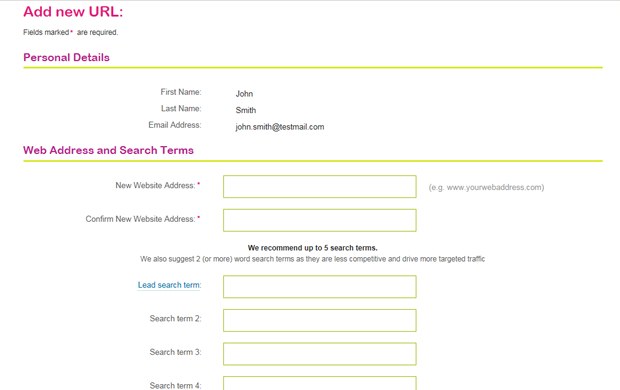
2. Add another campaign. You can add an unlimited number of campaigns to one account. So, if you have another website that you wish to add simply click this link, fill out the form and it will then be available to manage within your control panel instantly.
3. Invoices. All invoices will be available here.
4. Update your details. You can update your personal details here.
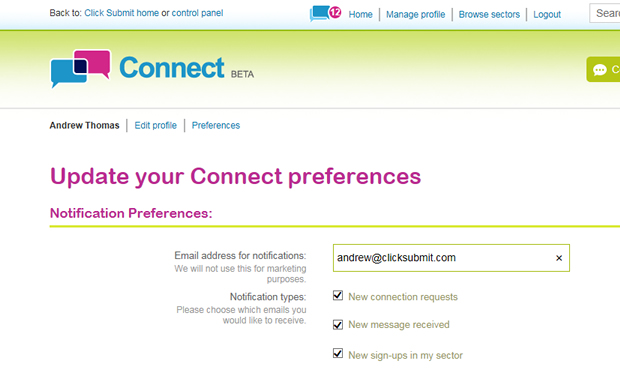
5. Preferences. This is where you can update your general preferences. These include; how many campaigns you want to list and if you want to view just active or both active and cancelled campaigns.
6. Alert system. The alarm bell will alert you to any issues or opportunities you have with your campaign. These may include billing issues and/or action points that we recommend you do.
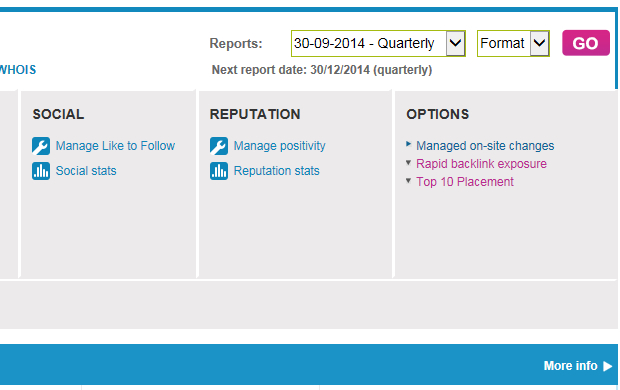
7. Reports. Within 24 hours of sign up and then every quarter thereafter you will have a report available. You can then download this in either HTML or PDF format.
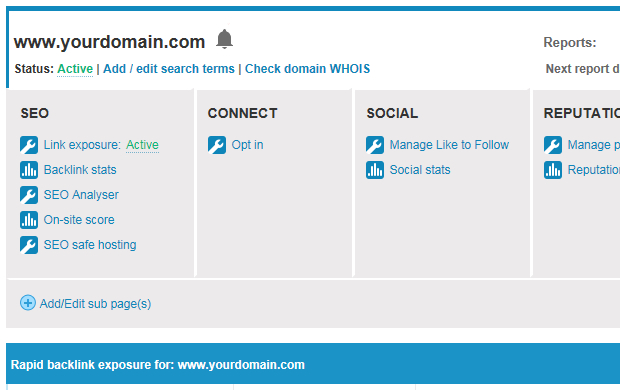
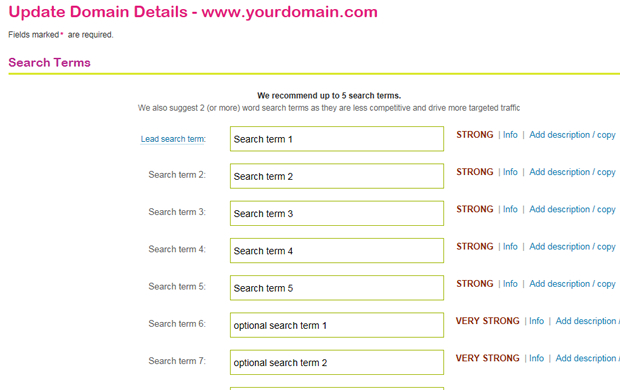
8. SEO. This is where all of the SEO product information and settings live. This includes the ability to:
a) Opt in and out of backlink exposure - see the backlink exposure explained article.
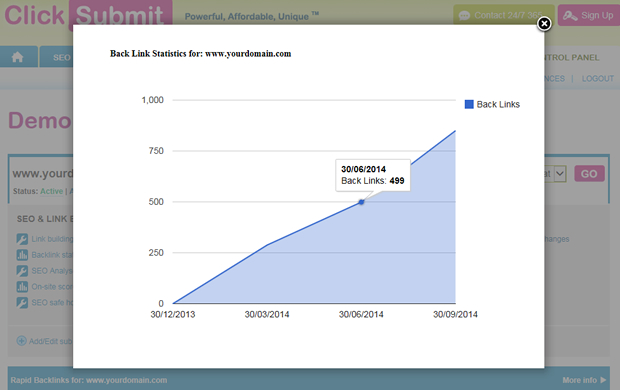
b) Check your back link stats. These are updated every 3 months.
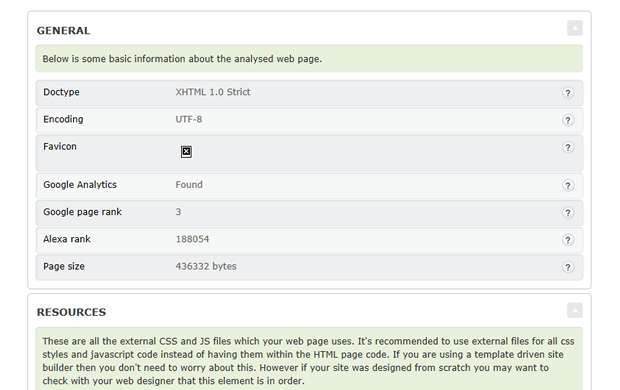
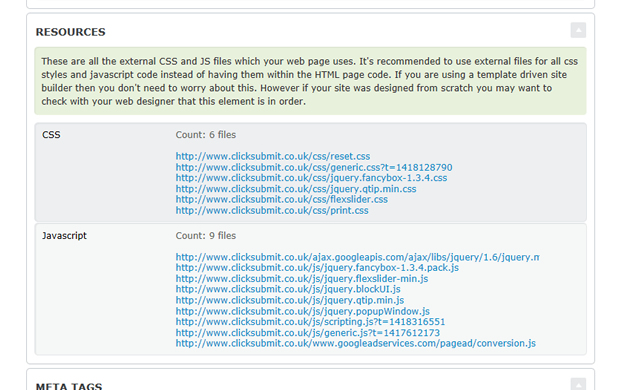
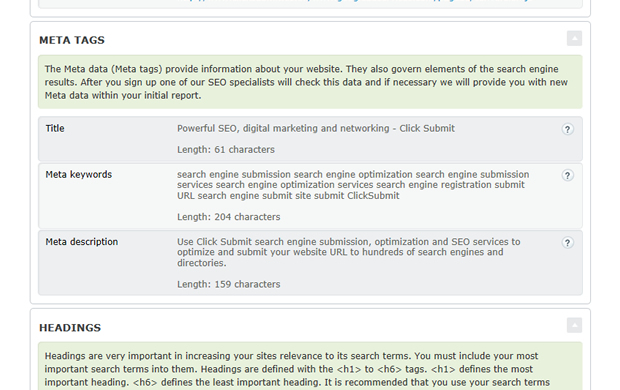
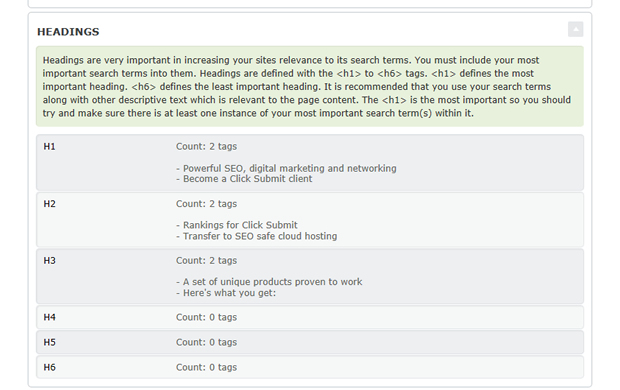
c) Load the SEO analyser - see the SEO analyser explained article for more info.
d) View your historical on-site score data.
e) Opt in to the SEO safe hosting offer from Cloud Next.
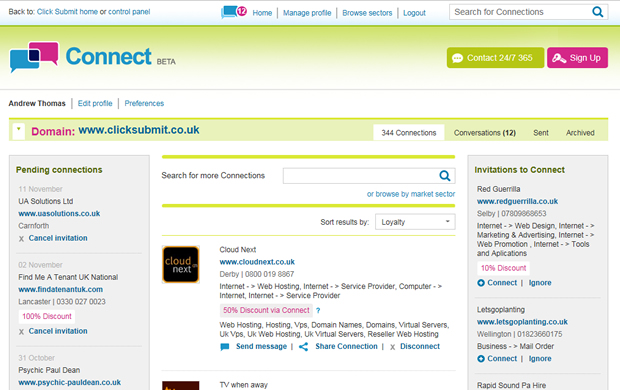
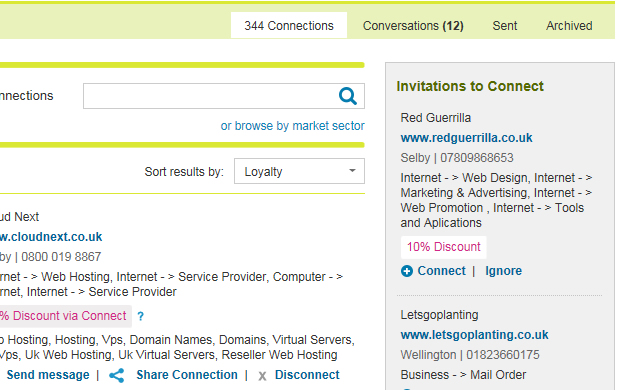
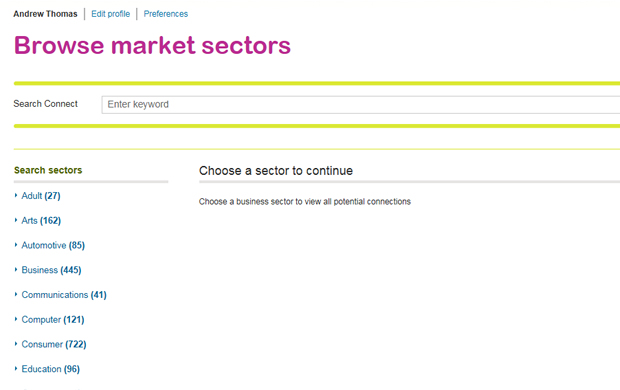
9. Connect. Not available at present.
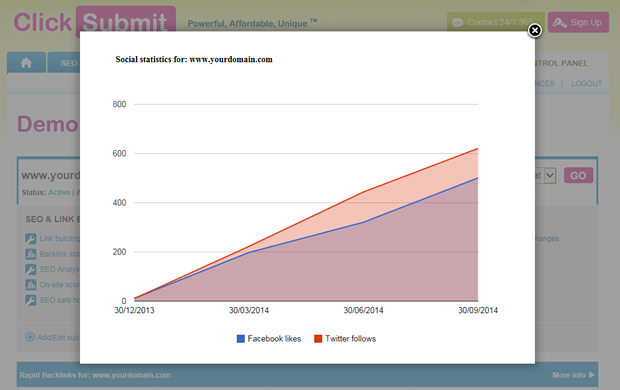
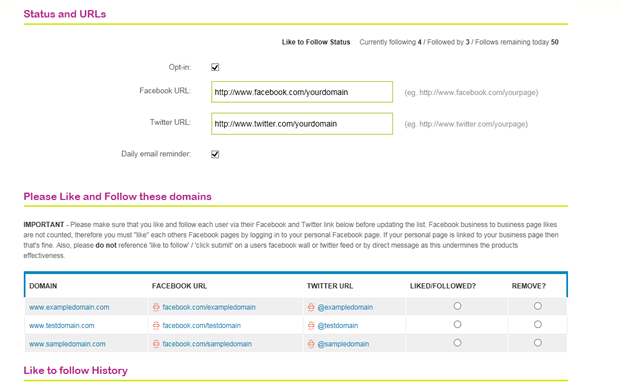
10. Social. Opt in and then configure the like to follow service here – see like to follow explained.
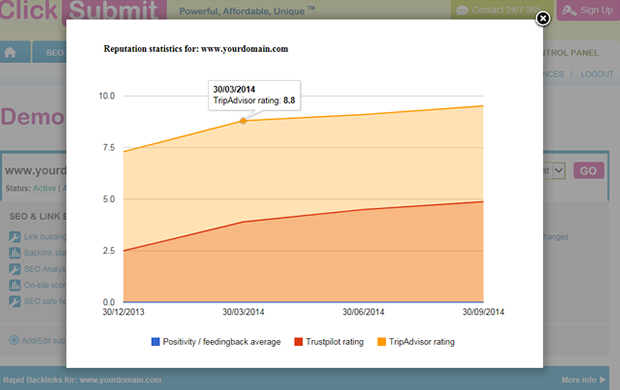
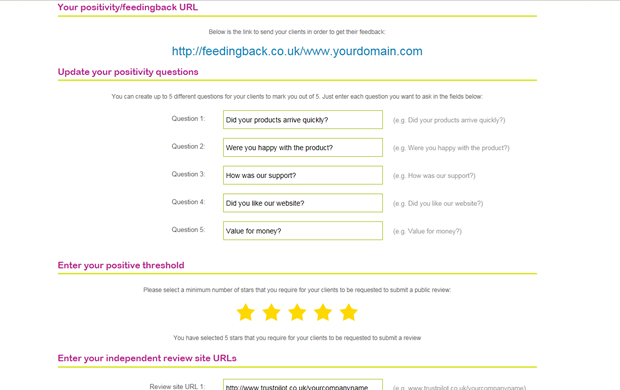
11. Reputation. Opt in and then configure the positivity service here – see positivity explained
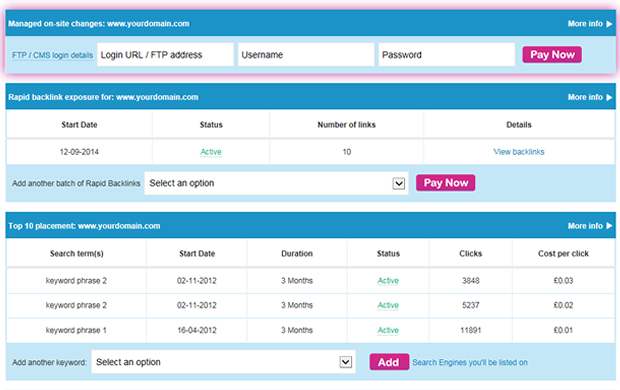
12. Options. You can add any of our options here. These include the managed on-site changes, rapid backlink exposure and search term placement – Each product has its own knowledge base article in the options section in the knowledge base.
13. Add / edit sub pages. Here you can add and edit your sub pages. A sub page is an important trail page of your site. So for example if we were adding a sub page it maybe: www.boost-local.co.uk/seo – see the sub URLs explained article for more information.
Search the knowledge base